


Best Practices
How to extract tables from a PDF to Excel
Learn how PDF table extraction works, which PDFs convert best, and how to review the Excel workbook after conversion.
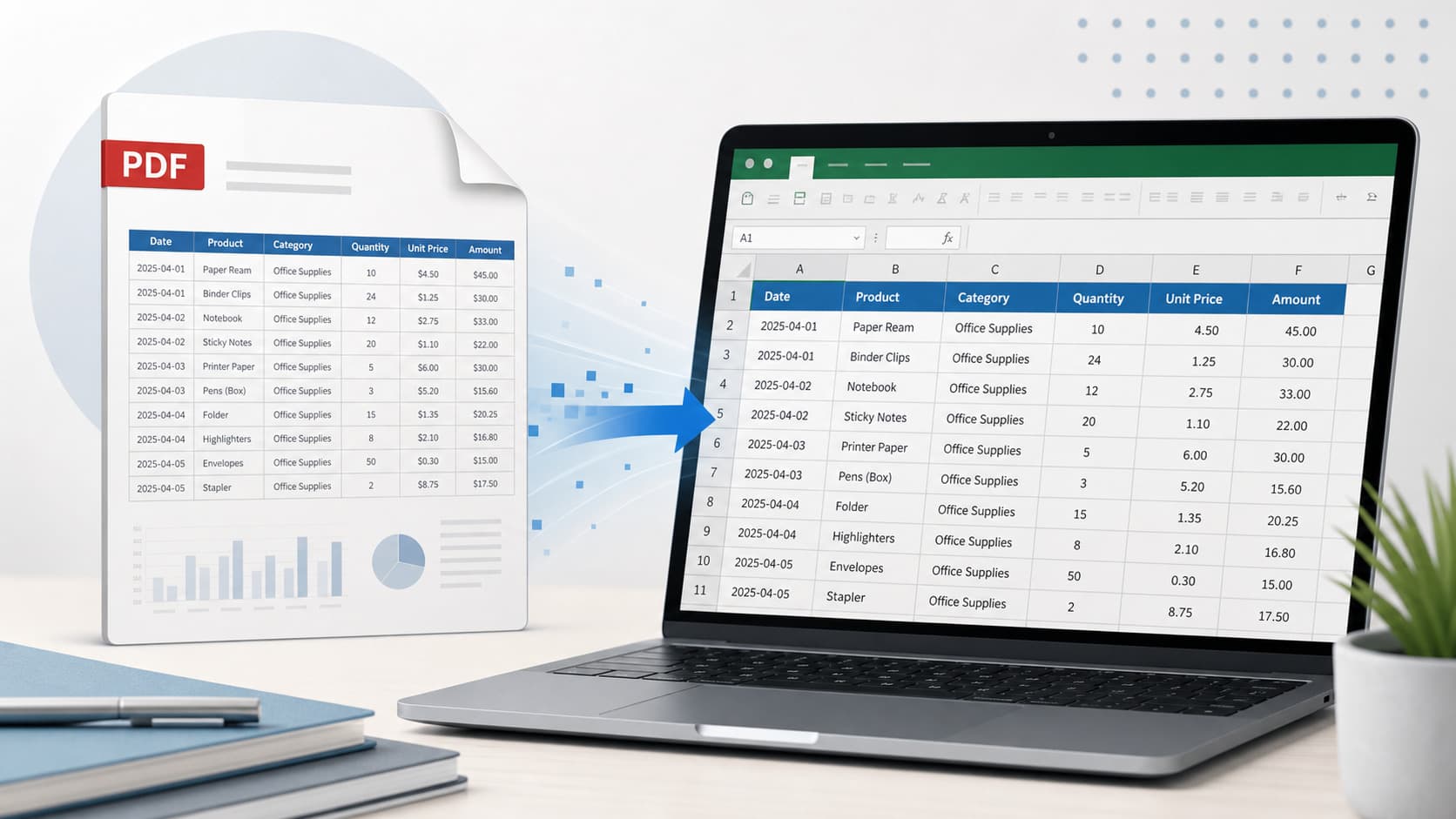
Start with the table structure
PDF table extraction works best when the source file has selectable text, visible column boundaries, clear headers, and consistent row spacing. If the PDF was exported from a spreadsheet or reporting system, it usually has a better chance of becoming a clean Excel workbook.
Scanned documents can still be useful, but they depend on OCR. That means the finished spreadsheet may need closer review for numbers, dates, and symbols.
A simple extraction workflow
The goal is to move from PDF to Excel without losing the practical review step that keeps the workbook trustworthy.
- Open the PDF and confirm it is not password protected.
- Check whether the table text can be selected.
- Upload the full PDF instead of screenshotting one page.
- Preview the detected tables before relying on the workbook.
- Download the XLSX file and check totals, headers, and page-spanning tables.
Common cleanup after extraction
Most cleanup is ordinary spreadsheet work: removing repeated headers, resizing columns, checking numeric formatting, and deleting sheets you do not need.
That cleanup is part of the process. A good PDF to Excel workflow does not pretend every source file is perfect; it gives you a better starting point than manual retyping.
A Practical Fit
Where NebuCore Tech fits
NebuCore Tech focuses on PDF table extraction for people who want a reviewable Excel workbook without rebuilding every row by hand.
Try the converter with a table-heavy PDF and inspect the workbook before using the result.