


Best Practices
What is OCR? How scanned PDFs become Excel spreadsheets
Learn what OCR (Optical Character Recognition) is, how it works on scanned PDFs, and when you need a PDF OCR converter to extract tables from scanned PDF files.
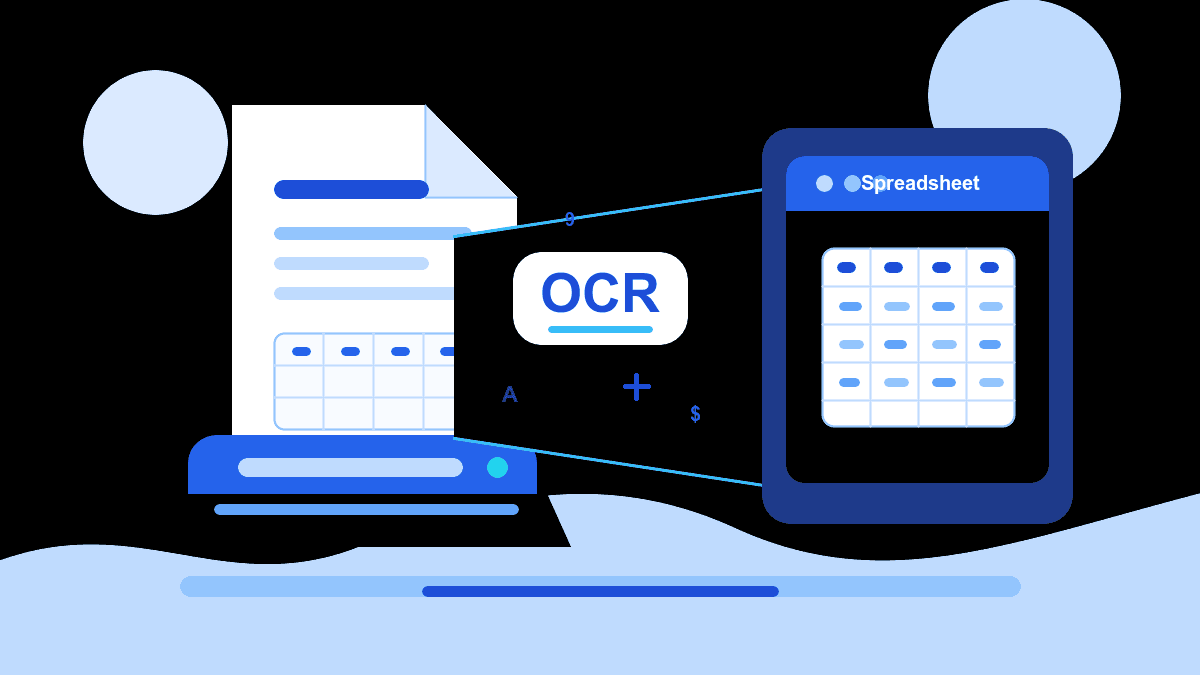
What is OCR?
OCR stands for Optical Character Recognition. It is the technology that reads text from images — including scanned pages, photographed documents, and image-based PDFs — and converts it into machine-readable characters.
Without OCR, a scanned PDF is just a picture of a page. Software cannot read the numbers in a table, select the text in a paragraph, or extract rows into a spreadsheet. OCR solves that by analysing the shapes of characters in the image and matching them to letters, digits, and symbols.
When people ask about "what is OCR PDF", they are usually asking why their PDF converter is failing to extract anything useful — and OCR is the answer. If the file is a scan, conversion requires OCR first.
How OCR works on scanned PDFs
A scanned PDF reaches OCR software as a grid of pixels. The OCR engine runs through several steps: it detects regions of text, analyses character shapes using pattern recognition or machine learning models, assembles characters into words and lines, and then outputs a structured text layer.
For PDF to Excel work, that text layer is then analysed further to detect tables — rows, columns, and cell boundaries. The quality of the final spreadsheet depends on how cleanly the original was scanned and how well the OCR engine handles the layout.
Modern PDF OCR converters handle printed text well. Handwriting, very small fonts, faded ink, skewed scans, and noisy backgrounds still reduce accuracy. That is why reviewing OCR-based conversions before using the data is a recommended habit.
When do you need OCR vs regular text extraction?
Not every PDF needs OCR. A PDF created by software — an exported invoice, a generated report, a saved spreadsheet — already contains a text layer. A converter can extract that text directly without reading pixels.
You need OCR when the PDF is: a scanned paper document, a photographed receipt or form, a faxed page saved as PDF, or any file where selecting text in a PDF viewer produces garbage or nothing at all.
A quick test: open the PDF and try to select and copy a number. If it copies cleanly, OCR is probably not required. If copying fails or gives wrong characters, the file is image-based and you need a PDF OCR converter.
- Digital PDF (text-based): no OCR needed, direct extraction works fine.
- Scanned PDF (image-based): OCR required before any table data can be extracted.
- Mixed PDF: some pages are digital, some are scans — converter must handle both.
- Photo of a document taken on a phone: OCR required, and image quality matters a lot.
How to extract tables from scanned PDFs
Extracting tables from a scanned PDF involves two stages. First, OCR reads the characters on each page. Second, table detection identifies column and row boundaries and groups the recognised text into cells.
The challenge is that scanned pages rarely have perfect alignment. A slight tilt, uneven ink, or shadow across a column can cause OCR to misread numbers or merge adjacent cells. A good PDF OCR converter handles deskewing and preprocessing automatically before running recognition.
After conversion, the key review step is checking totals and comparing a sample of rows against the original PDF. For financial tables, this is worth the extra two minutes.
How NebuCore uses OCR for scanned PDFs
NebuCore Tech detects whether an uploaded PDF contains a readable text layer or is image-based. For scanned PDFs, it applies OCR automatically before attempting table extraction — so you do not need to pre-process the file yourself.
The result is an XLSX workbook with a table preview you can check before downloading. For scanned PDF to Excel work, the preview step is especially useful because it shows exactly what the OCR engine detected, and you can confirm the data looks right before saving.
Because scanned PDFs vary widely in quality, NebuCore is designed for practical review: give it the file, check the preview, and download only when the output matches what the source PDF contains.
Tips for better OCR results
Better input gives better output. A few preparation steps improve OCR accuracy significantly.
- Scan at 300 DPI or higher — lower resolution blurs character edges and causes misreads.
- Use black-and-white or greyscale mode for document scans rather than colour, which adds noise.
- Make sure pages are straight — even a small tilt degrades column alignment in extracted tables.
- Avoid scanning through glass with glare or placing documents at an angle.
- If the PDF has been compressed heavily (small file size), re-scan if possible — compression artefacts confuse OCR.
- For multi-page scans, check that every page was captured clearly before uploading.
A Practical Fit
Where NebuCore Tech fits for OCR PDF work
NebuCore Tech handles scanned PDF to Excel conversion with built-in OCR — no extra software required. Upload a scanned PDF, preview the extracted tables, and download a clean XLSX workbook.
Upload a scanned PDF and see how the table extraction looks before you download anything.