


Best Practices
Scanned PDF to Excel: what works, what needs review
Understand what to expect when converting scanned PDFs to Excel, including OCR limits, table quality, and review steps.
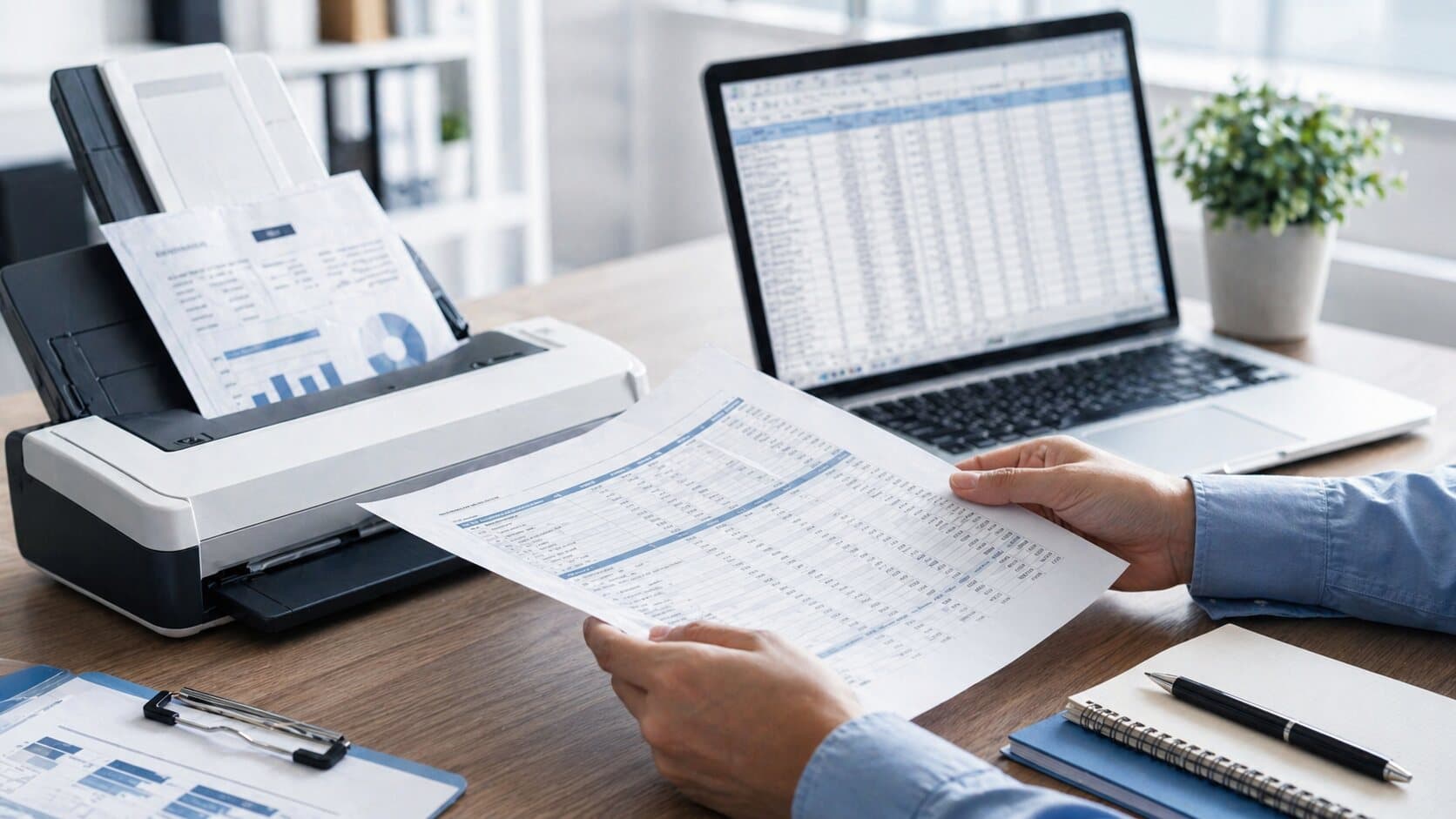
Scanned PDFs are different from digital PDFs
A digital PDF often contains selectable text. A scanned PDF is usually an image of a page, so conversion depends on OCR before the table can become spreadsheet data.
That extra step matters. A clean scan with straight pages and readable numbers may work well, while blurry, skewed, stamped, or low-resolution scans usually need more review.
What improves scanned PDF conversion
A few source-file details can make scanned PDF to Excel work much more reliable.
- Use the clearest available PDF instead of a compressed copy.
- Avoid photos of screens or pages when a real scan is available.
- Check that rows are not cut off by page edges.
- Review small numbers, decimals, and currency symbols carefully.
- Expect extra cleanup when tables span pages or include handwritten notes.
How to review OCR-based workbooks
When OCR is involved, review the converted workbook against the source PDF before relying on totals or reports. Focus on high-impact fields first: totals, dates, account numbers, invoice numbers, and rows used in calculations.
A converter can still save time with scanned PDFs, but it should be treated as a strong draft rather than a final authority.
A Practical Fit
Where NebuCore Tech fits
NebuCore Tech is built for practical PDF to Excel work and gives you a workbook to inspect, which is especially important when scanned PDFs or OCR are involved.
The best test is a real scanned PDF from your workflow, reviewed against the XLSX output.